Setting up & Permissions
Grant Local Network and other macOS permissions so Lumox can receive AirPlay streams from your devices.
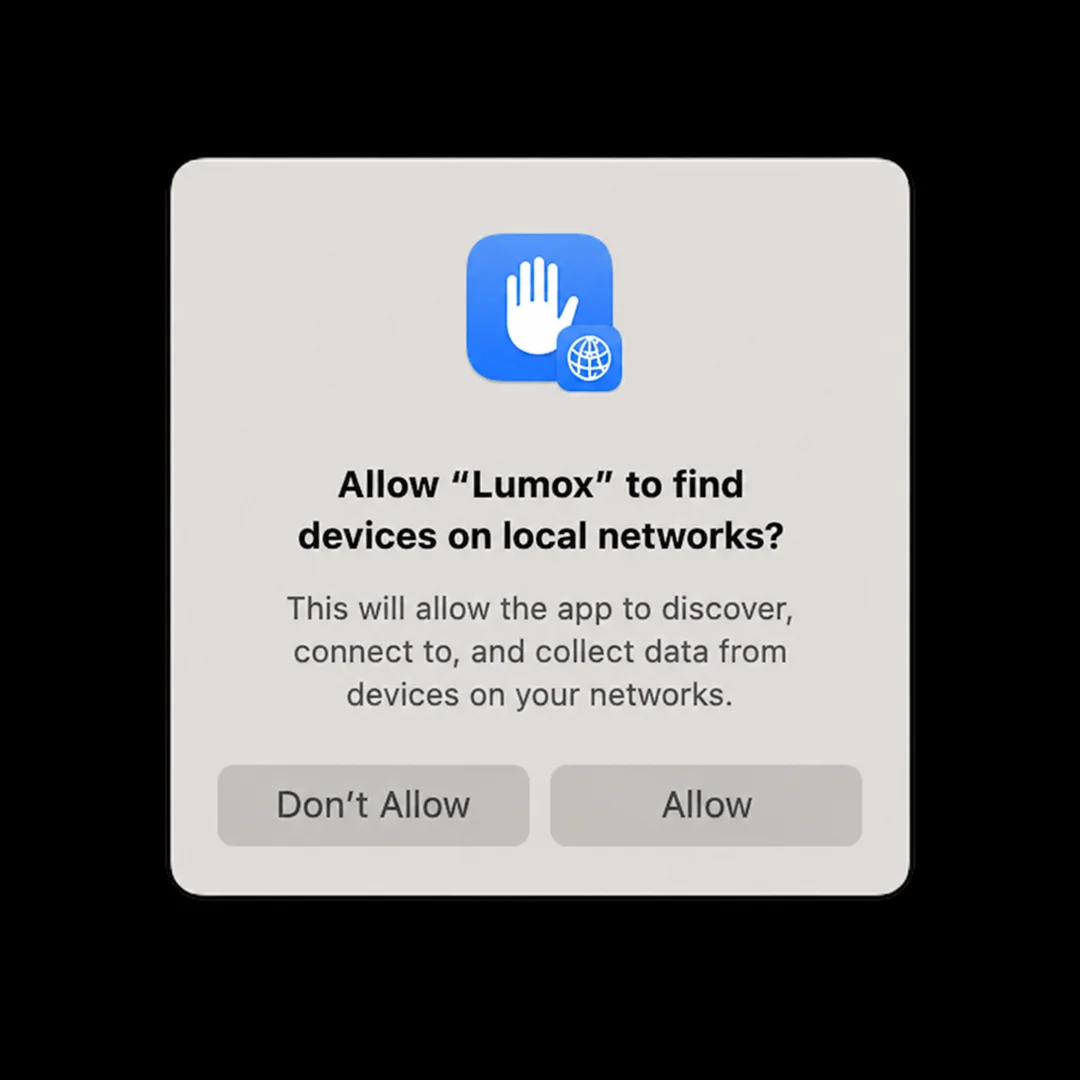
Local Network (required)
Lumox advertises your Mac as an AirPlay receiver on the local network. Without Local Network access, your iPhone or iPad will not see Lumox in the AirPlay list.
- Open Lumox and go to Settings → General (or use the menubar Help → Local Network Setup…).
- Check the Local Network status. If blocked, click Open Local Network Settings.
- In System Settings → Privacy & Security → Local Network, enable Lumox.
- Restart Lumox if the AirPlay picker still does not list your Mac.
Screen Recording (when sharing in video calls)
Mirroring inside Lumox does not require Screen Recording. You only need it if another app (e.g. Google Meet, Zoom) captures your Mac screen while Lumox is visible. Grant Screen Recording for that browser or app if prompted.
Firewall and VPN
- Disable VPNs that isolate local traffic, or allow local network access for Lumox.
- Some corporate firewalls block mDNS/Bonjour — try a standard home Wi‑Fi network first.
Still stuck? See the Connection helper for step-by-step troubleshooting if your iPhone does not connect.