Fullscreen mode
Present your mirrored device on a clean canvas — ideal for demos, calls, and multi-device layouts.
Enter fullscreen
- Use the fullscreen control in the device window, or
- Press ⌃⌘F (Mac) / F11 (Windows/Linux)
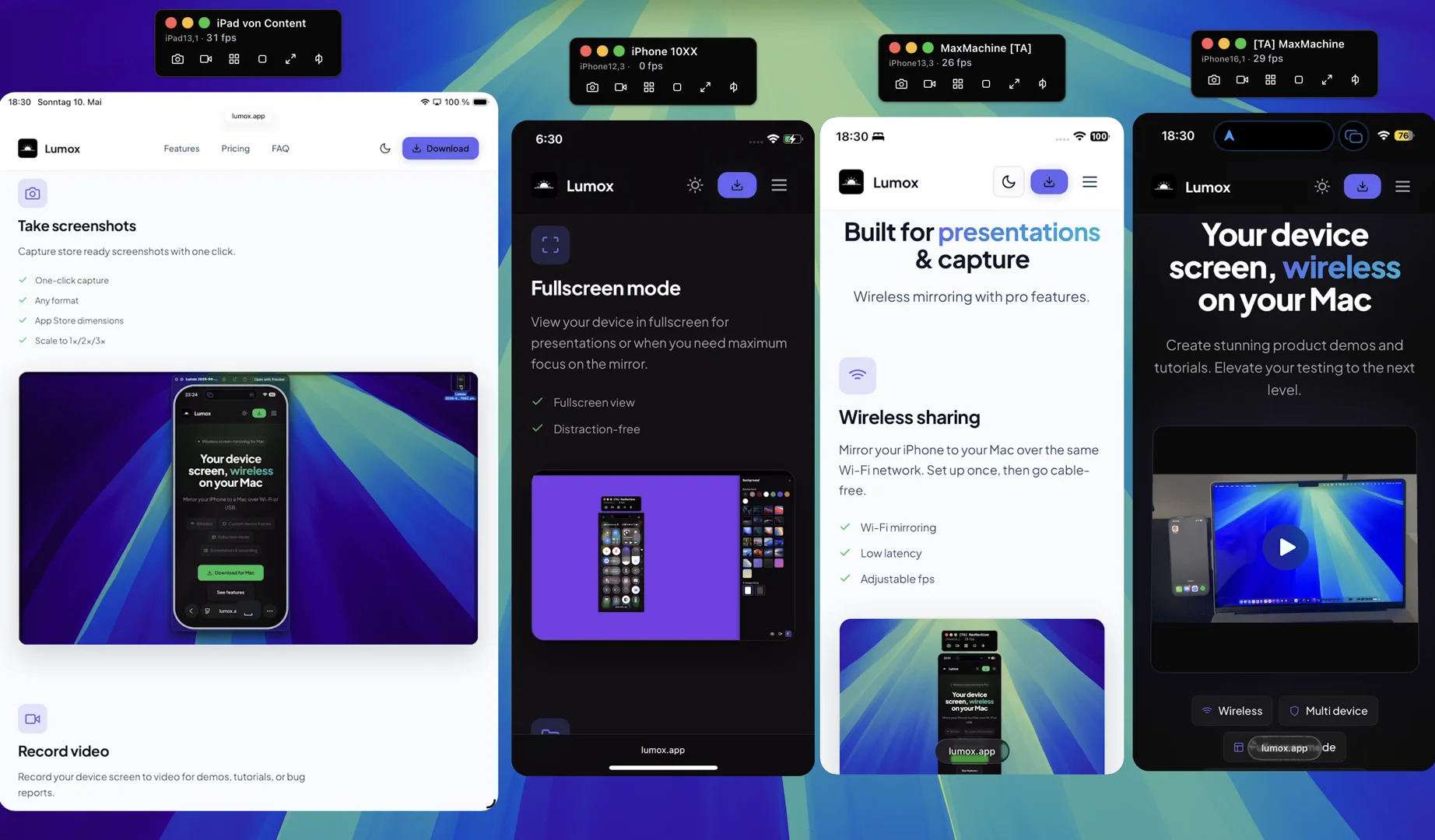
Fullscreen mode shows your mirrored device on a clean canvas — ideal for presentations, live demos, and recording without desktop clutter.
Multi-device layout
Mirror several phones or tablets, then open fullscreen to arrange them side by side. Scale each device on one canvas — ideal for comparison demos. To record that layout with custom backgrounds, see Recording in fullscreen.
Backgrounds in fullscreen
Choose a solid color, gradient, macOS wallpaper, transparent mode, or upload a custom image in Settings. Backgrounds apply in fullscreen and in windowed mode — and are included when you record.
Exit fullscreen
Press Esc or use the same fullscreen shortcut again to return to the normal window.