If you live in the European Union and own a Mac and an iPhone, you might have noticed something strange: the iPhone Mirroring feature that Apple shipped with macOS Sequoia is missing on your machine. The setup screen never appears, the app does not show up, and Apple’s support page mentions a regional caveat in the fine print.
The short version is that iPhone Mirroring is currently not available in the EU because Apple is still working through compatibility with the Digital Markets Act (DMA). Apple has signaled that it intends to bring the feature to the EU eventually, but at the time of writing there is no public release date.
The good news: you do not actually need iPhone Mirroring to wirelessly show your iPhone screen on your Mac. iOS has had its own wireless screen sharing built in for years — and this guide walks you through using it, end‑to‑end, in about three minutes.
Quick orientation: the technique below uses iOS Screen Mirroring — the same option you use to send your phone to an Apple TV. The only thing that changes is the receiver: instead of a TV, your Mac becomes one.
Why iPhone Mirroring is missing in the EU
iPhone Mirroring is the macOS feature that lets you control a paired iPhone from your Mac as if it were a window on the desktop. Apple launched it with macOS 15 Sequoia and iOS 18 in late 2024 outside the EU, but in the EU it has remained switched off because of overlap with new DMA interoperability requirements. Apple noted in its release notes that EU users would not see the feature at launch and would have to wait for a later update.
For many people that is genuinely inconvenient: developers who want to record screen captures, founders making product demos, support engineers diagnosing customer phones, and anyone who simply wants to show their phone screen to a meeting room from a Mac.
What you can use instead
There are three realistic options on macOS today. They are all worth knowing, even if you settle on one of them:
- USB cable + QuickTime Player. Plug your iPhone in, open QuickTime, choose File → New Movie Recording, and pick the iPhone as the source. It is free and reliable, but the phone has to stay tethered to the Mac.
- Browser‑based tools. A few websites let you mirror over WebRTC, but they are usually capped on resolution, watermarked, and force everything through a remote server. Privacy‑sensitive content is a no‑go.
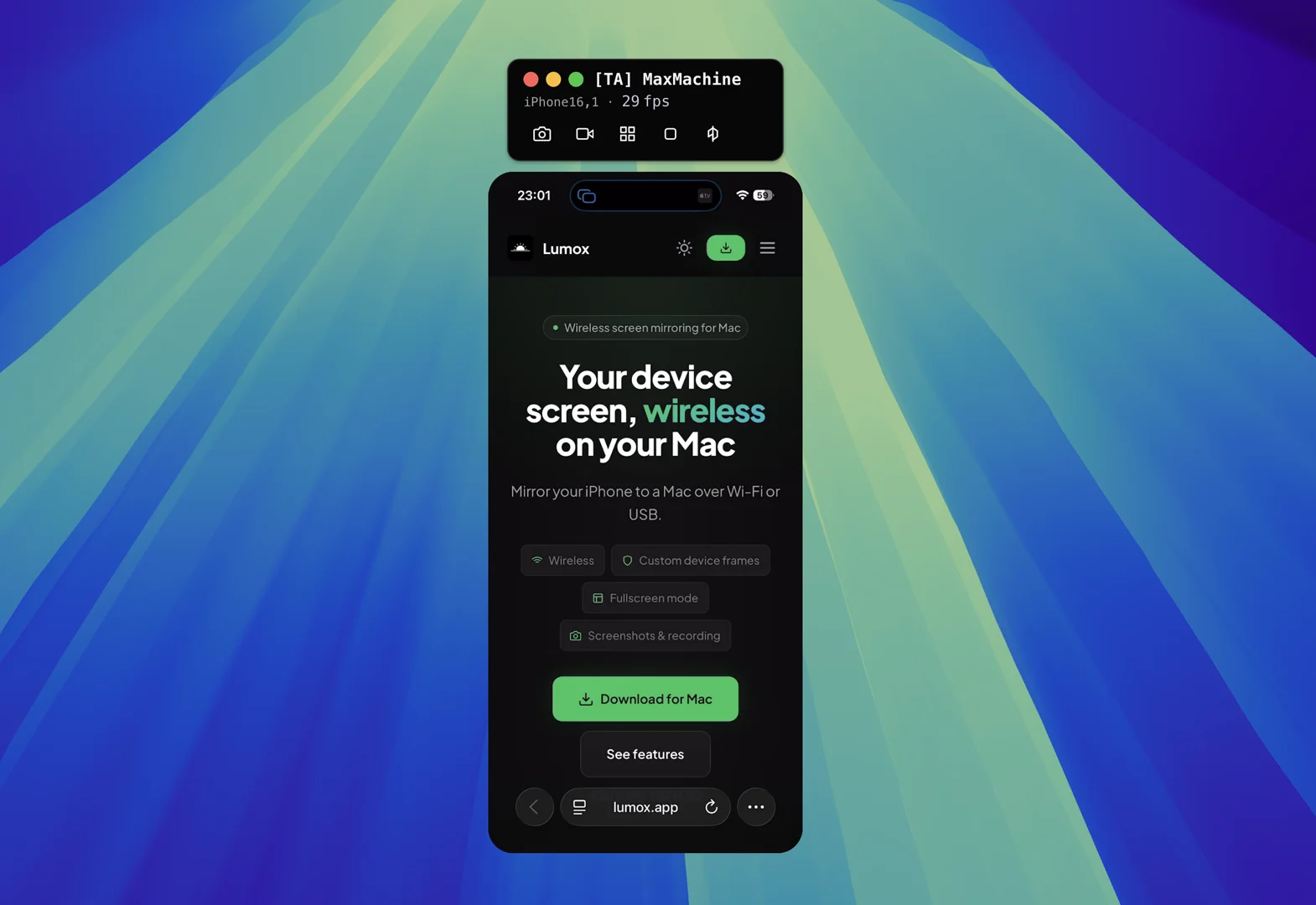
- iOS Screen Mirroring + a Mac receiver app. Your iPhone already broadcasts its screen wirelessly via the protocol behind Screen Mirroring. All you need on the Mac is something that can receive that stream. Lumox is one such app — and the rest of this guide uses it because it is the path of least resistance.
What you’ll need
- An iPhone running iOS 14 or later (so any iPhone from the last several years).
- A Mac on macOS 12 Monterey or later.
- Both devices on the same Wi‑Fi network. They do not have to be on the same band, but the same network is what lets them discover each other.
- Lumox installed on the Mac. The free version is enough to follow along.
No app needs to be installed on the iPhone, and you do not need to sign in to anything on the phone. The whole handshake happens on the local network.
Step‑by‑step: mirror your iPhone wirelessly to your Mac
-
Open Lumox on your Mac
Launch Lumox and keep it visible. Once the app is open, your Mac begins advertising itself as a wireless screen receiver on the Wi‑Fi network. There is nothing to configure on first launch — the receiver is on by default.
-
Open Control Center on the iPhone
On iPhones with Face ID, swipe down from the top‑right corner of the screen. On iPhones with a Home button, swipe up from the bottom. You should see the cluster of toggles and tiles that make up Control Center.
-
Tap “Screen Mirroring”
Look for the tile that shows two overlapping rectangles, labelled Screen Mirroring. Tap it. iOS will scan the local network and present a short list of receivers — Apple TVs, AirPlay‑capable speakers, and now your Mac running Lumox.
-
Pick your Mac from the list
Your Mac will appear with the Lumox V1 (your Mac) Tap it.
-
Watch your iPhone appear on your Mac
Within a second your iPhone screen will pop up in a window on the Mac. Rotate the phone, scroll, swipe between apps — everything tracks live. To stop, open Control Center on the phone again, tap Screen Mirroring, and choose Stop Mirroring.
Tips for a smooth wireless mirror
Stay on the same Wi‑Fi network
iOS uses Bonjour to discover nearby receivers. If your phone is on a guest network or a different VLAN, it will not see your Mac. The simplest fix is to put both devices on the main Wi‑Fi network of the home or office. On well‑configured networks, 5 GHz works best for low latency.
Keep the iPhone unlocked while mirroring
iOS pauses the mirror when the phone locks. If you only need a static demo, lower the auto‑lock interval in Settings → Display & Brightness → Auto‑Lock to Never while you’re working, then set it back when you’re done.
Hide notifications before recording
A wireless mirror captures everything on the phone — including incoming notifications and battery percentage. For a clean demo, switch on Focus → Do Not Disturb and silence the phone. If you’re recording a video in Lumox, you can also crop the status bar in post.
Use Lumox’s built‑in capture tools
Once the iPhone is mirroring, you can use Lumox to take screenshots, record video, switch to fullscreen mode, swap the background to a transparent one, or wrap the mirror in a custom device bezel. This is the part where a dedicated mirror app starts to pull away from a pure receiver — but for the bare‑minimum job of “my phone screen, on my Mac, wirelessly”, you don’t need any of it.
Pro tip: If you record a wireless demo, also switch to a transparent background in Lumox. You can drop your iPhone onto any video, slide deck or marketing image without needing a video editor.
Frequently asked questions
Does this work without iPhone Mirroring?
Yes — that is the whole point. The flow above is independent of Apple’s iPhone Mirroring feature. It uses iOS Screen Mirroring, which has shipped with iOS for over a decade and has nothing to do with the DMA stand‑off.
Do I need to have the same Apple-ID on the iPhone and the Mac?
No. You can use a different Apple-ID on the iPhone and the Mac.
Does my iPhone need an app?
No. Everything happens from the iPhone’s built‑in Control Center. The receiving app lives on the Mac.
Can I control the iPhone from the Mac?
Not over wireless mirroring. iOS only sends the picture, not the input layer. If you specifically need keyboard‑and‑mouse control of the phone from the Mac, you will need to wait for iPhone Mirroring to launch in the EU, or fall back to a USB cable plus a tool such as QuickTime — and even there, control is limited.
Is the wireless mirror laggy?
On a normal home Wi‑Fi network, latency is low enough for live demos and tutorials. It is not low enough for fast‑paced gaming, but for everything else — onboarding flows, App Store screenshots, support sessions — it is perfectly usable.
Wrapping up
You can sit out the EU rollout of iPhone Mirroring without missing the headline benefit: seeing your iPhone screen on your Mac, without a cable. Open Lumox, tap Screen Mirroring on the phone, choose your Mac, and you are streaming.
From there, the boring stuff (mirroring) becomes the foundation for the interesting stuff: stunning App Store captures, multi‑device tutorial videos, transparent‑background marketing assets, and clean live demos. We cover those in the rest of the Lumox blog.